SCOP Framework
Categories:
SCOP Framework allows for building, experimenting and deploying multi-agent systems in Java!
With SCOP, just a few lines of code is all you need to start building agents like an expert.
Prerequisites
Before starting, make sure that all of the necessary requirements listed below have been installed on the system.
- Whatever operating system you are using, start by updating the package index.
> sudo apt update
> choco update
> brew update
- Install the open source distributed version control system
git.
> sudo apt install git
> choco install git
> brew install git
- Install the dependency manager
maven.
> sudo apt install maven
> choco install maven
> brew install maven
- Install the free software package for retrieving files
wget.
> sudo apt install wget
> choco install wget
> brew install wget
- Install the JDK of
Java 21or later.
> sudo apt install openjdk-21-jdk
> choco install java
> brew install java
- Install your favorite
IDE for Java(e.g., Eclipse IDE, IntelliJ IDEA).
In this documentation, we use Eclipse IDE for the examples.
- Install the open source MQTT broker
Mosquitto.
If you want you can install another broker, however you need to give correctly to SCOP its URL.
> sudo apt install mosquitto
> choco install mosquitto
> brew install mosquitto
- Moreover, it is highly recommended to have an account from an open source end-to-end software development platform with built-in version control like GitLab, Github and so on.
In this documentation, we use GitLab since it has built-in version control, issue tracking, code review, CI/CD, and more.
Installation & Setup
In this section, we describe how to create and set up your first SCOP project.
This section is prepared for Windows. If you using Windows, make sure that The Windows Subsystem for Linux (WSL) is activated. For Linux/MacOS, the instructions are very similar.
Create a project on GitLab
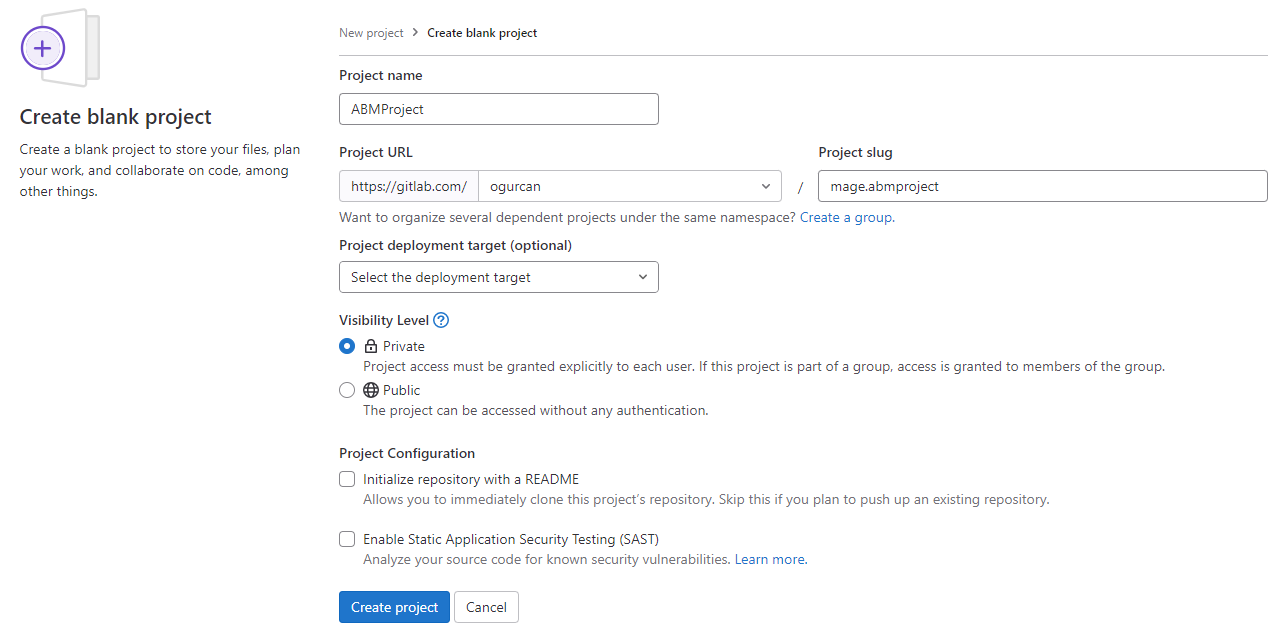
Using your browser, sign in to your GitLab account and click create a new blank project.
Give a name to your project such as ABMProject and set the project slug as mage.abmproject.
Note that, the project slug must not contain the character
-as it will be used during project configuration.
Clone the project using git
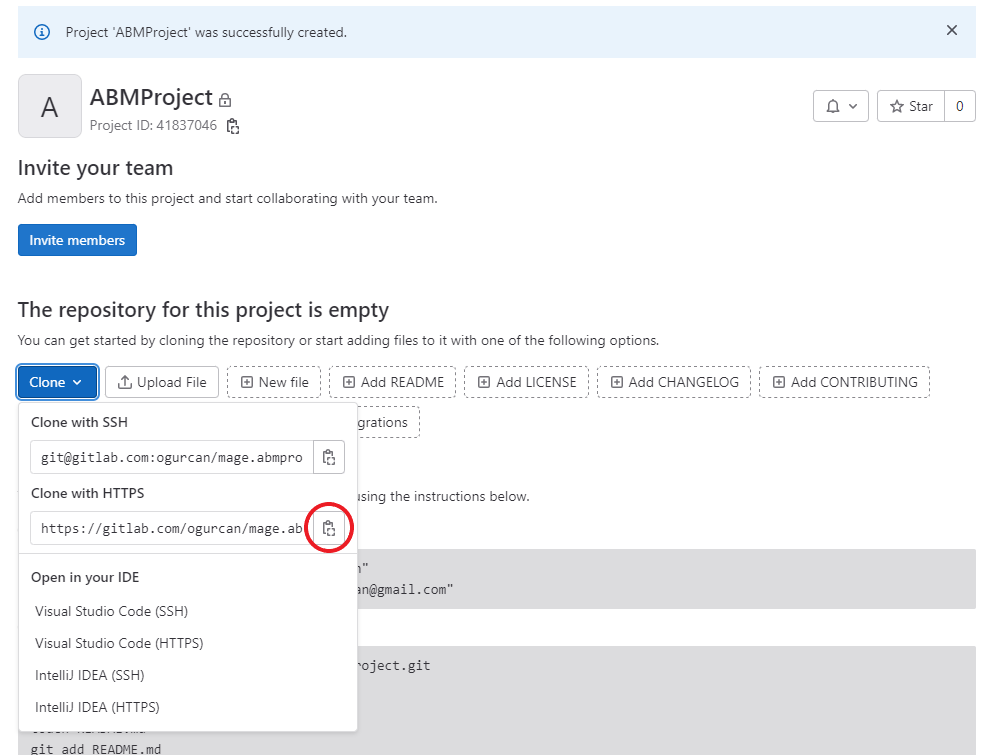
On the project home page, click Clone and then click Clone with HTTP to copy the project git url to the clipboard.
Open a terminal window and go to the git folder.
> cd git
Type git clone and paste the url from the clipboard.
> git clone https://gitlab.com/ogurcan/mage.abmproject.git
This will fetch the empty project from GitLab. You will to see the following output:
Cloning into 'mage.abmproject'...
remote: Enumerating objects: 3, done.
remote: Counting objects: 100% (3/3), done.
remote: Compressing objects: 100% (2/2), done.
remote: Total 3 (delta 0), reused 0 (delta 0), pack-reused 0
Receiving objects: 100% (3/3), done.
Build your SCOP project
Enter inside the project’s folder.
> cd mage.abmproject
Fetch the project builder script using wget.
> wget https://gitlab.com/scop-framework/mage.template/-/raw/master/.mage-project-builder.sh
This will download .mage-project-builder.sh to the project’s root folder. You will to see the following output:
--2022-12-02 15:45:51--  https://gitlab.com/scop-framework/mage.template/-/raw/master/mage-project-builder.sh
Resolving gitlab.com (gitlab.com)... 172.65.251.78
Connecting to gitlab.com (gitlab.com)|172.65.251.78|:443... connected.
HTTP request sent, awaiting response... 200 OK
Length: 1866 (1.8K) [text/plain]
Saving to: 'mage-project-builder.sh'

mage-project-builder.sh       100%[=================================================>]   1.82K  --.-KB/s    in 0.004s

2022-12-02 15:45:51 (439 KB/s) - 'mage-project-builder.sh' saved [1866/1866]
Execute the script to configure your SCOP project:
> chmod +x .mage-project-builder.sh && ./.mage-project-builder.sh
> .mage-project-builder.sh
>.mage-project-builder.sh
This will download all necessary files, install the required mage.api dependency using Maven and configure the pom.xml file.
Note that it will take the parent folder’s name as
artifactIDinpom.xml.
Verify the project structure
To verify the configuration, first list the project folder contents using the dir command.
> dir
13/12/2022  23:39    <DIR>          .
13/12/2022  23:39    <DIR>          ..
13/12/2022  23:39             1,478 .classpath
13/12/2022  23:39               178 .gitignore
13/12/2022  23:39               497 .gitlab-ci.yml
13/12/2022  23:39    <DIR>          .m2
13/12/2022  23:39               155 .mage-api-install.sh
13/12/2022  23:39               111 .mage-execute.sh
13/12/2022  23:38             2,072 .mage-project-builder.sh
13/12/2022  23:39               541 .project
13/12/2022  23:39    <DIR>          .settings
13/12/2022  23:39             4,909 pom.xml
13/12/2022  23:39             1,296 README.md
13/12/2022  23:39    <DIR>          src
               9 File(s)         11,237 bytes
               5 Dir(s)  329,697,140,736 bytes free
To have a detailed view, now list the tree structure of the project folder using the tree command.
> tree /a /f
Folder PATH listing
Volume serial number is B8B2-6F1E
C:.
|   .classpath
|   .gitignore
|   .gitlab-ci.yml
|   .mage-api-install.sh
|   .mage-execute.sh
|   .mage-project-builder.sh
|   .project
|   pom.xml
|   README.md
|
+---.m2
|       ci_settings.xml
|
+---.settings
|       org.eclipse.jdt.core.prefs
|       org.eclipse.m2e.core.prefs
|
\---src
    +---main
    |   +---java
    |   |   \---mage
    |   |       \---abmproject
    |   |               HelloWorldExperimenter.java
    |   |
    |   \---resources
    |       |   log4j.properties
    |       |   mage.api-1.0.0-a.1.jar
    |       |
    |       \---experiments
    |               DefaultExperimenter.xml
    |
    \---test
        +---java
        \---resources
                log4j.properties
We are done with the script. Delete it.
> rm .mage-project-builder.sh
> del .mage-project-builder.sh
> rm .mage-project-builder.sh
Try executing it out!
To try the default example experimenter, run the .mage-execute.sh script in the project’s root folder.
> ./.mage-execute.sh
> .mage-execute.sh
>.mage-execute.sh
This will execute the HelloWorldExperimenter and will generate the following output.
[INFO] Scanning for projects...
[INFO]
[INFO] -------------------< scop-framework:mage.abmproject >--------------------
[INFO] Building scop-framework.mage.abmproject 0.0.1-SNAPSHOT
[INFO] --------------------------------[ jar ]---------------------------------
[WARNING] The artifact org.slf4j:slf4j-log4j12:jar:2.0.3 has been relocated to org.slf4j:slf4j-reload4j:jar:2.0.3
[INFO]
[INFO] --- maven-resources-plugin:2.6:resources (default-resources) @ mage.abmproject ---
[WARNING] Using platform encoding (Cp1252 actually) to copy filtered resources, i.e. build is platform dependent!
[INFO] Copying 3 resources
[INFO]
[INFO] --- maven-compiler-plugin:3.1:compile (default-compile) @ mage.abmproject ---
[INFO] Nothing to compile - all classes are up to date
[INFO]
[INFO] --- exec-maven-plugin:3.1.0:java (default-cli) @ mage.abmproject ---
[INFO] Using the XML loader.
[INFO] Loading configuration
[INFO] Unable to load external configuration file experiments/DefaultExperimenter.xml, maybe it is internal ?
[INFO] Configuration loaded.
[INFO] [  0.00] Running experiment.
[INFO] [  0.00] ThePlatform/Role/ExperimenterAgent is ACTIVE now.
[INFO] [  0.00] ThePlatform/Role/ActionScheduler is ACTIVE now.
[INFO] [  0.00] ThePlatform/SchedulerRole/ActionScheduler is ACTIVE now.
[INFO] [  0.00] ThePlatform/ExperimenterRole/ExperimenterAgent is ACTIVE now.
[INFO] [  0.00] ThePlatform/Role/HW_Environment is ACTIVE now.
[INFO] [  0.00] HW_Environment/GroupManagerRole/HW_Environment is ACTIVE now.
[INFO] [  0.00] ThePlatform/Role/Bob is ACTIVE now.
[INFO] [  0.00] HW_Environment/BystanderRole/Bob is ACTIVE now.
[INFO] [  4.00] Bob says "Hello World !"
[INFO] [  9.00] Bob says "Hello World !"
[INFO] [ 14.00] Bob says "Hello World !"
[INFO] [ 19.00] Bob says "Hello World !"
[INFO] [ 24.00] Bob says "Hello World !"
[INFO] [ 29.00] Bob says "Hello World !"
[INFO] [ 34.00] Bob says "Hello World !"
[INFO] [ 39.00] Bob says "Hello World !"
[INFO] [ 44.00] Bob says "Hello World !"
[INFO] [ 49.00] Bob says "Hello World !"
[INFO] [101.00] Done.
[INFO] ------------------------------------------------------------------------
[INFO] BUILD SUCCESS
[INFO] ------------------------------------------------------------------------
[INFO] Total time:  13.764 s
[INFO] Finished at: 2022-12-15T12:16:55+04:00
[INFO] ------------------------------------------------------------------------
Press any key to continue...
Commit your SCOP project to git
The initial configuration is done. Now you can make your first commit that create the main branch in your git repository.
First, list the untracked files using git status:
> git status
On branch main

No commits yet

Untracked files:
  (use "git add <file>..." to include in what will be committed)
        .gitignore
        .gitlab-ci.yml
        .m2/
        .mage-api-install.sh
        .mage-execute.sh
        .mage-project-builder.sh
        README.md
        pom.xml
        src/

nothing added to commit but untracked files present (use "git add" to track)
>
Then, use git add . to track them all.
> git add .
warning: in the working copy of '.gitignore', LF will be replaced by CRLF the next time Git touches it
warning: in the working copy of '.gitlab-ci.yml', LF will be replaced by CRLF the next time Git touches it
warning: in the working copy of '.m2/ci_settings.xml', LF will be replaced by CRLF the next time Git touches it
warning: in the working copy of '.mage-execute.sh', LF will be replaced by CRLF the next time Git touches it
warning: in the working copy of '.mage-project-builder.sh', LF will be replaced by CRLF the next time Git touches it
warning: in the working copy of 'README.md', LF will be replaced by CRLF the next time Git touches it
warning: in the working copy of 'pom.xml', LF will be replaced by CRLF the next time Git touches it
warning: in the working copy of 'src/main/java/mage/abmproject/HelloWorldExperimenter.java', LF will be replaced by CRLF the next time Git touches it
warning: in the working copy of 'src/main/resources/experiments/DefaultExperimenter.xml', LF will be replaced by CRLF the next time Git touches it
warning: in the working copy of 'src/main/resources/log4j.properties', LF will be replaced by CRLF the next time Git touches it
warning: in the working copy of 'src/test/resources/log4j.properties', LF will be replaced by CRLF the next time Git touches it
Finally, commit all the staged files.
> git commit -m "Initial commit"
[main (root-commit) b47a2eb] Initial commit
 13 files changed, 483 insertions(+)
 create mode 100644 .gitignore
 create mode 100644 .gitlab-ci.yml
 create mode 100644 .m2/ci_settings.xml
 create mode 100644 .mage-api-install.sh
 create mode 100644 .mage-execute.sh
 create mode 100644 .mage-project-builder.sh
 create mode 100644 README.md
 create mode 100644 pom.xml
 create mode 100644 src/main/java/mage/abmproject/HelloWorldExperimenter.java
 create mode 100644 src/main/resources/experiments/DefaultExperimenter.xml
 create mode 100644 src/main/resources/log4j.properties
 create mode 100644 src/main/resources/mage.api-1.0.0-a.1.jar
 create mode 100644 src/test/resources/log4j.properties
View your SCOP project in your IDE
View in Eclipse IDE
Open your Eclipse IDE.
Click Window > Show View > Other... and type git to filter options.
Choose Git Repositories from the list and click Open.
Go to the Git Repositories view and click Add an existing local Git Repository to this view.
From the pop-up window Add Git Repositories, find and add mage.abmproject.
From the Git Repositories view, right clich on the mage.abmproject repository and click Import Projects...
Eclipse IDE will automatically find your empty project. Just click Finish and your project will be added in the Project Explorer window.
Commit your SCOP project to git
Now, go back to Eclipse IDE, click on the project root on Project Explorer and press F5 to refresh it.
You will see the updated project content.
Click Window > Show View > Other... and type git to filter options.
Choose Git Staging from the list and click Open.
Go to the Git Staging view, click ++ to add all files to Staged Changes, type "Initial commit." as Commit Message, click Add Signed-off by and finally click Commit and Push.
Congratulations! You have created and configured your SCOP project. Now you can start developing.
Check-out and try the HelloWorld project
Before proceeding, let’s download and run the Hello World example.
Go to the GitLab project page of Hello World Tutorial in your browser.
On the project web page, click Clone and then click Clone with HTTP to copy the project git url to the clipboard.
https://gitlab.com/scop-framework/model-library/tutorial/mage.tutorial.helloworld.git
Go to the Git Repositories view in Eclipse IDE and click Clone a Git Repository and add the clone to this view.
Right click on the repository, click Import Projects... and then click Finish. This will import the project into your Project Explorer.
Feedback
Was this page helpful?
Glad to hear it! Please tell us how we can improve.
Sorry to hear that. Please tell us how we can improve.